
Messages, Call Alert and Radio Check
Text messages, call alert and radio check work on DMR channels. The Radio reference says which radios have them verified. None of them needs the codec. Sending needs a DMR channel you may transmit on and your DMR ID.
Receiving a message
When a message arrives, the radio shows a banner with the sender and the first words for 8 s. Press # while the banner is up to open the message. The radio plays a short three-note tone with the banner unless Settings > Sound > Message tone is off. On a radio with a vibration motor it also vibrates twice, unless Settings > Sound > Vibrate is off. A call alert or a private call to you gives one long vibration, an emergency four.
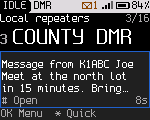
After the banner, the status line shows "M" and the number of unread messages, and the hub shows "1 new" next to Messages.
Reading messages
-
Press OK, 2 (Messages). The newest message is first. Unread messages are highlighted.
-
Focus a message and press OK. The radio shows the sender, how long ago it arrived and the text. It marks the message read.
-
Below the text:
Row Does Reply "OK" Sends "OK" to the sender Reply "On my way" Sends "On my way" to the sender Call Makes the sender the talk target for now Delete Deletes the message. There is no undo
# on a message opens the actions for its sender. PTT in an open message calls the sender.
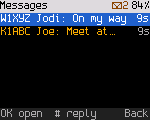
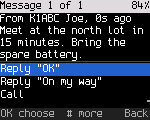
The radio keeps the last 4 messages received, in memory. They are lost when the radio turns off.
Sending a message
- Open the actions for the person or talkgroup. Press # on Home for the last caller, or # on a contact.
- Press 3 (Message).
- Pick a text ("OK", "On my way", "Call me" or "Can't talk now"). Press OK to send.
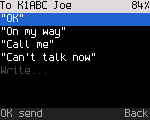
The radio shows "Sending to ..." and returns to Home. A message to a person asks for a confirmation. When none comes, the radio tries again, in every format. The result comes as a banner:
| Banner | Meaning |
|---|---|
| "Delivered to ..." | The person's radio confirmed the message |
| "No answer from ...", with "Not delivered: send it again" | No confirmation came. The message isn't kept for a retry. Send it again from the actions |
| "Sent to ..." | A message to a talkgroup has gone out. Talkgroup messages have no confirmation |
With confirmed IP data turned off (tools/rfoundry_debug.py data ip-settings auto off), ETSI messages to a person also go
once, with "Sent to".
Typing your own text isn't built yet. "Write..." is dimmed. Messages you send aren't stored in the radio.
Message formats
Settings > Connections > Message format picks the format of the messages you send. The radio reads all three formats, whatever the setting. A reply goes in the format of the message it answers.
| Format | Use it for |
|---|---|
| ETSI (default) | The standard DMR text message (ETSI IP text). Radios and dispatch software set to "DMR standard" text read it. Delivery to a person is confirmed |
| ETSI short | Radios that only show ETSI short data messages. Delivery is confirmed |
| Motorola | MOTOTRBO radios and dispatch software set to Motorola text messages (TMS). Delivery is confirmed. Not in builds made without Motorola TMS support |
If your radio was set up before ETSI became the default and its data settings were saved, it keeps sending Motorola messages until you change the setting.
Call alert
A call alert pages another radio. It rings there, even when that radio's user isn't listening to your talkgroup.
- Open the actions for the person (# on Home, or # on a contact).
- Press 5 (Call alert). The radio shows "Call alert to ..." and returns to Home.
- The radio tries up to 3 times. The result is a banner: "... answered the alert" or "No answer from ...".
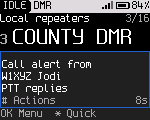
When someone sends you a call alert, the radio shows "Call alert from ..." with "PTT replies". Press # while the banner is up for the caller's actions. Your radio acknowledges the alert unless Settings > Connections > Answer call alerts is off.
Radio check
A radio check asks another radio to answer, without its user doing anything. It shows whether that radio is on and in range.
- Open the actions for the person.
- Press 4 (Radio check). The radio shows "Checking ...".
- The radio tries up to 3 times. The result is a banner. "... answered (0.8 s)" gives the round-trip time. "...: no answer" comes with "Off, out of range or elsewhere".
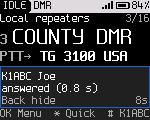
Your radio answers radio checks from others only when Settings > Connections > Answer radio checks is on. It is off by default, because an answer makes the radio transmit without you asking.
Registration (ARS) and location (LRRP)
ARS registers the radio with a presence server at power-up and after a channel change. It is off until a server ID is set. There is no menu item for it yet. Developers set it over the debug link.
LRRP answers location requests from a dispatcher. A radio without GPS (Radio reference) answers "no fix". Settings > Location > Answer GPS requests turns the answers off.