
Questa pagina non è ancora tradotta; è mostrata in inglese.
First Boot
Turning the radio on
Switch the radio on with its power switch. On the handhelds this is the volume knob, turned clockwise past its click. The Radio reference says where the switch is on each radio. The boot screen shows for about a second, then the radio opens the Home screen. Keys pressed during the boot screen are ignored.
The boot screen shows the RadioFoundry logo and the two boot text lines from the codeplug. Along the bottom it shows the radio model and the firmware version: the release name, such as v26.11 (the year and month it came out), or for a build between releases the commit it was built from. The boot text lines are 16 characters each, set in the codeplug, for example your callsign and name.
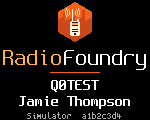
To turn the radio off, use the power switch again. On the handhelds, turn the volume knob counterclockwise until it clicks. See Turning off.
Channels on a new installation
RadioFoundry reads the codeplug from the radio's SPI flash, in the layout the Codeplug Editor and qdmr write. The codeplug holds the channels, zones, contacts and your DMR ID. When RadioFoundry finds no channels there, it uses six built-in FM simplex channels:
| Channel | Frequency | Bandwidth |
|---|---|---|
| Simplex 145.500 | 145.500 MHz | 25 kHz |
| Simplex 146.520 | 146.520 MHz | 25 kHz |
| Simplex 146.550 | 146.550 MHz | 25 kHz |
| Simplex 433.500 | 433.500 MHz | 12.5 kHz |
| Simplex 446.000 | 446.000 MHz | 12.5 kHz |
| Simplex 446.500 | 446.500 MHz | 12.5 kHz |
Check that these frequencies are legal for you before you transmit on them. Settings > Advanced > Codeplug shows which channels the radio uses: "built-in channels" or "from the CPS".
A radio that ran its original firmware still holds that firmware's codeplug. RadioFoundry checks the codeplug when it starts. When it isn't a RadioFoundry (open-firmware) codeplug, the radio ignores it and uses the built-in channels. Settings > Advanced > Codeplug then also shows "Other firmware's codeplug: ignored". Nothing is erased: the Codeplug Editor can still read and convert it. Write a codeplug to replace it.
The first time you save something on the radio (a channel, a contact, a zone, your DMR ID), it asks first, on the Old codeplug screen:
| Choice | What it does |
|---|---|
| Cancel | Saves nothing. This is the default, and Back does the same |
| Start new | Starts a new, empty RadioFoundry codeplug and saves your change. The old codeplug's channels, contacts, DMR ID and radio name are erased. Back it up first |
| Use anyway | Erases nothing and uses the old codeplug as it is. Your change isn't saved: make it again |
Use anyway is remembered until a codeplug is written to the radio or you do a factory reset.
Programming the radio
Program channels, zones, contacts, talkgroup lists and your DMR ID with the Codeplug Editor on the project's web site (Programming the radio). qdmr is an alternative. Most settings can also be changed on the radio (Settings). Channels, contacts and the DMR ID come from the codeplug.
DMR needs your DMR ID. Without one, the radio refuses to transmit on DMR channels and shows "No DMR ID in codeplug". Settings > My radio > DMR ID and name shows the ID the radio has, and sets one on the radio: it is written into the codeplug.
Checks after installing
- Settings > My radio > About (also under Advanced) shows "RadioFoundry" with the version you flashed and the radio model. Below them it lists the authors and the licenses of everything in the firmware.
- On an FM channel, hold Monitor to open the squelch. You hear noise. This shows that the receiver and the audio path work.
- On a DMR channel, the Home screen shows "No codec: voice off" in its bottom line if the codec isn't merged. See Installing, no codec.
- Change a setting, for example Settings > Display > Brightness. Turn the radio off and on again. Check that the setting stayed. If it didn't, see "Settings are not kept" in Troubleshooting.